

Welcome to the World of Windows 11
Windows 11 stands as the pinnacle of Microsoft’s operating system lineup. While it inherits foundations laid by Windows 10, this edition has evolved into a distinct and sophisticated platform. Its design, capabilities, and security features set it apart as the most reliable foundation for modern Windows applications.
Why Windows 11 Matters
- Universal Compatibility – Windows 11 works seamlessly across a wide range of devices, from the latest laptops to versatile tablets.
- Intuitive User Interface – The fresh visual language offers a cleaner, more organized workspace with a touch‑friendly navigation system.
- Enhanced Security – Built‑in safeguards such as Microsoft Defender and updated credential management protect your data against rising cyber threats.
- Optimized Performance – Faster boot times, smoother multitasking, and efficient resource usage translate into a more responsive user experience.
Getting Started with Windows 11
Step 1: Verify Your Hardware
Before upgrading, confirm that your PC meets the minimum requirements:
- Compatible Processor – 64‑bit CPU with at least a 1 GHz clock.
- Supported RAM – 4 GB or more.
- Disk Space – 64 GB or greater for installation.
- System Firmware – UEFI with Secure Boot capability.
- Graphics Requirements – DirectX 12 compatible GPU.
Step 2: Update Your System
Open Settings and navigate to Update & Security → Windows Update to check for the latest builds. Microsoft periodically releases incremental updates that bring new features and security patches.
Step 3: Explore Key Features
- Snap Layouts – Arrange windows with keyboard shortcuts for easy multitasking.
- Widgets – Stay informed with customizable news, weather, and sports widgets.
- Microsoft Edge Integration – Seamless browsing with built‑in privacy controls and performance enhancements.
- Virtual Desktops – Separate workspaces for different projects, improving organization.
- Windows Hello – Face‑based authentication for a more secure login experience.
Future Outlook
Windows 11 will continue to evolve with an emphasis on collaboration tools, AI‑driven productivity, and deeper integration with cloud services. The operating system’s architecture is designed to accommodate upcoming hardware advances and emerging software demands.
Take the Leap to Windows 11 Today
Whether you are a long‑time user considering the upgrade or a fresh installer, Windows 11 offers a modern, secure, and versatile platform ready to meet the demands of contemporary Windows applications. Upgrade, explore, and experience a new era of computing excellence.
Windows 11 2024 update (24H2)
Windows 11 24H2 Release Overview
The newest edition of Microsoft’s flagship operating system—known as the 2024 24H2 update—was first deployed to the Windows Insiders program in February 2024 and officially opened its doors to the broader community on October 1.
Key Improvements & New Capabilities
- Enhanced Core Experience – The update refines the UI, performance, and security foundations.
- Windows Search Revamp – Users can now locate files by describing what they need, not just by file names. The right‑click menu also gained clearer labels for Cut, Copy, and Rename.
- Archiving Flexibility – TAR and 7z formats are now supported for compressed archives.
- Power Settings Expansion – A new Energy Saver mode reduces background consumption, with an option to trigger it based on battery level.
- Copilot Integration – Copilot’s icon aligns with standard apps, can be repositioned, and launches in its own window rather than a sidebar.
- Copilot+ PCs & Laptops – One‑tap “Click‑to‑do” context menus let users share images, search Bing, or invoke generative text functions quickly from any app.
- Advanced Paint Features – Regular Microsoft Paint users gain AI‑generated image creation, while Copilot+ users unlock Cocreator to upscale, style‑swap, or finish drafts.
Phone Connectivity Enhancements
The Phone Link app is now pinned to the Start menu, offering instant access to battery status, connectivity, recent calls, and messages. AI can draft replies, and the phone’s camera can double as a webcam for video chats.
Summary of User Benefits
- More intuitive file searching
- Customizable taskbar icon placement for Copilot
- AI‑powered productivity tools across document, image, and communication tasks
- Greater control over power consumption and device longevity
- Seamless integration of phone features within Windows

Microsoft Windows 11 Update Highlights
1. The Controversial Recall Feature
The update now includes the much‑famed Recall function, but due to its polarizing nature it has not yet been publicly released. Insiders will receive the feature first.
2. AI‑Enhanced Video Call Experience
Windows Studio Effects brings AI tools to popular platforms such as Zoom, Google Meet, and Microsoft Teams.
- Eye‑Contact Filter – a Quick Settings panel lets you appear to look directly at the camera.
- Background Blur & Enhanced Lighting – apply subtle blur or brighten the visual backdrop during a call.
3. Live Captioning for Copilot+ Owners
Owners of Copilot+ gain the capability to generate captions for any spoken audio on their PC. These captions can be translated into a choice of 40 languages, though most languages require an optional download of a language pack.
4. Automatic Super‑Resolution
When games lack support for FSR or DLSS, Automatic Super‑Resolution provides an equivalent solution. The Photo app includes a quick tool to upscale images, making old or low‑resolution pictures suitable for prints or added detail.
5. New Wireless & Unified Teams Features
- Bluetooth LE Audio & Wi‑Fi 7 – Windows 11 now supports these advanced wireless protocols.
- Unified Teams App – the separate “Teams for Work” and “Teams for Personal” apps have been merged into a single experience.
- HDR Background Support – set an HDR image as your wallpaper for vivid visuals.
- Sudo for Windows – run higher‑level commands directly within the Command Line.
Windows 10 end of support
Windows 10 Will Lose Free Support Oct. 14, 2025
What that means: Devices running Windows 10 will still work, but they will start to feel the sting of mounting cyber threats. Once Microsoft stops delivering free security patches, bug fixes, and help, any new malware or vulnerabilities will remain unchecked, turning PCs into risk‑laden targets.
Why Switching Matters
- Data security gone weak: Every new threat becomes unaddressed, increasing the chance of attacks on personal and business data.
- Privacy at stake: With Microsoft no longer patching errors, sensitive information could be exposed to malicious actors.
- Business costs rise: Enterprises could face higher incident‑response expenses and compliance fines.
Recommended Path Forward
Upgrade to Windows 11 – the newer OS is built for modern security needs and offers a smoother computing experience.
For those who cannot move to Windows 11 due to hardware or other constraints, Microsoft offers a paid Extended Security Updates (ESU) program. It supplies up to one year of security patches, but is meant as a temporary bridge for enterprises to finish migration plans, not a permanent fix.
Bottom Line
When free support for Windows 10 ends, users and organizations must either shift to a new, supported OS or accept growing security risks. The decision to stay on Windows 10 after Oct. 14, 2025 is a gamble that could cost personal data, business reputation, and operational continuity.
How to update Windows

Updating to the Latest Windows 11
If your computer is already running Windows 11, the easiest way to keep it current is to use the built‑in Windows Update feature. Search for “Windows update” in the Start menu, click Check for updates, and install any important updates. When prompted, restart your PC or laptop. Depending on how many updates have been released since your last check, you may need to repeat this several times.
Guiding an Upgrade from Windows 10
Moving from Windows 10 to Windows 11 involves a few extra steps. First, confirm that your system meets the Windows 11 system requirements.
Processor
- 1 GHz or faster, two or more cores on a compatible 64‑bit CPU or SoC.
- Intel 8th‑gen or newer, or AMD Ryzen 2000 series or newer.
RAM
- 4 GB minimum. If you have less, consider adding more memory.
- Check with your PC manufacturer for guidance.
Storage
- 64 GB or larger.
- Manage space before upgrading.
System Firmware
- UEFI with Secure Boot.
- Use the UEFI and BIOS settings.
TPM
- Version 2.0 required.
Graphics Card
- DirectX 12 or newer with WDDM 2.0 driver.
Display
- High‑definition (720 p) display, over 9 inches diagonally, 8 bits per color channel.
Internet
- Windows 11 Home needs internet connectivity and a Microsoft account.
If your machine satisfies or exceeds these specifications, you should be ready for the upgrade.
Methods for Upgrading to Windows 11
The most straightforward upgrade path is to run Windows Update and select the option to download and install Windows 11. For a deeper guide on the upgrade process, follow the detailed steps outlined in our comprehensive upgrade guide.
Differences between Windows 11 and Windows 10
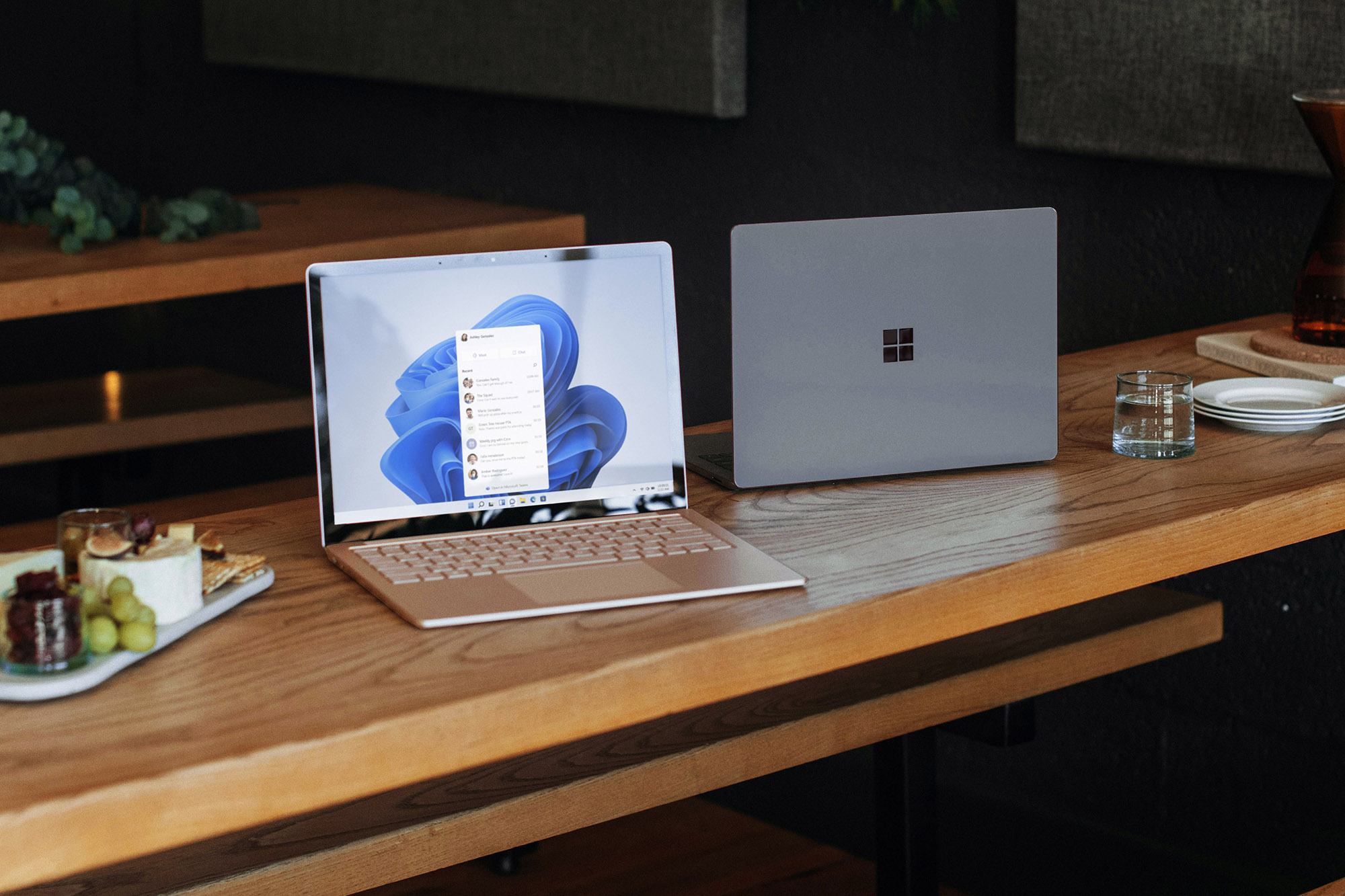
Windows 11: A blend of familiarity and innovation
Microsoft’s latest operating system carries forward many visual cues from its predecessor while introducing its own distinct layout and feature set.
Design lineage
- Windows 11 inherits several design motivations from Windows 10, offering a recognizable aesthetic.
- Despite the shared heritage, the overall visual language has been refined to feel more modern.
Layout nuances
- The Start menu has been reimagined, presenting a cleaner, more streamlined interface.
- The Taskbar has undergone a subtle overhaul, providing a flatter, more cohesive look.
Feature highlights
New Start menu – a fresh, simplified way to access apps and settings.
Taskbar overhaul – a subtler, flatter design that enhances usability.
Better design and features

Windows 11: A Fresh Visual Break from Microsoft
Taskbar and Start Menu: Centered for a macOS‑Style Look
Windows 11 places the Taskbar and Start menu in the middle of the screen, giving the interface a macOS and ChromeOS‑inspired feel. If you prefer the classic left‑side layout, you can still reset it to the left.
Limitations on Taskbar Placement
Unlike previous versions, Windows 11 does not let you pin the Taskbar to the right or left natively— it remains at the bottom of the screen. Third‑party tools such as Start11 can change this, but it requires a paid solution.
Visual Enhancements and New Icons
- Rounded corners on windows
- Modernized app icons
- Exclusive Fluent Emoticons
Despite early promises, the 3D emoticons Microsoft teased at launch were not included in this release.
Additional Feature Additions
Windows 11 introduces live captions for browsers and a Focus mode that allows you to customize notification settings for a set working period.
File Explorer: A Focus of Modernization
The latest update brings tabs to File Explorer, signaling a upcoming full redesign slated for 2023. This overhaul is expected to merge Microsoft services and OneDrive directly into File Explorer, as well as provide a new details menu when you select a file or folder.
Start menu and Taskbar

Windows 11: A Tidier Startup Landscape
The Start menu in Windows 11 has been trimmed down, leaving you with a static list of applications that sit just above a selection of your most frequently accessed documents. One of the most noticeable changes is the disappearance of Live Tiles, which creates a noticeably cleaner space at the bottom of the menu.
Taskbar Transformations
- The search box has been collapsed into a minimalist icon, and the Cortana function has been removed. In its place, the Copilot icon now resides in this slot, and thanks to the 24H2 update, you can move the icon to any location on the taskbar that feels most comfortable.
- A dedicated Microsoft Teams icon has been integrated into the taskbar. If Teams isn’t part of your daily workflow, you can remove this icon with a simple right‑click.
- Weather information, previously interwoven with News and Interests in Windows 10, has been relocated to the left side of the screen. In Windows 11 the Weather widget has been replaced by a newly introduced Widgets panel, offering the same weather updates alongside news headlines, sports scores, and traffic alerts.
New Workspaces: Virtual Desktops
Windows 11 also introduces Virtual Desktops, allowing you to create distinct workspace environments. Whether you’re juggling work, gaming, or a mix of both, you can maintain separate desktop desktops that cater to each task.
Improved gaming features

Why Windows 11 Stands Out for Modern Gamers
With the gaming community’s need for speed, realism, and reliability, Windows 11 moves ahead of the competition. Continuous updates, built‑in performance features, and a gamer‑centric design make it the platform to choose.
Key Features that Enhance Performance
- Auto HDR delivers richer, more accurate colors on HDR‑enabled displays.
- DirectStorage lets games load assets directly from SSDs, cutting load times.
- Improved refresh‑rate support fixes issues for multi‑monitor setups and ensures smoother gameplay.
DirectStorage Beyond Windows 11
Although DirectStorage is available on Windows 10, Microsoft’s emphasis on Windows 11 means the platform now offers a broader array of supported titles—such as Ratchet and Clank Rift Apart—with optimised performance.
Addressing Performance Bugs
Recent updates have tackled lingering bugs that affected frame rates and load‑time stability, resulting in a more polished gaming experience.
Optimizing Windows 11 for the Best Gaming Experience
- Enable Game Mode to prioritize system resources for gaming.
- Turn on Auto HDR in display settings to maximize visual fidelity.
- Set DirectStorage as default in the Game Mode menu to speed asset loading.
- Update graphics drivers regularly to stay compatible with the newest editions.
- Adjust battery settings on laptops to avoid throttling during long sessions.
- Use a high‑refresh‑rate monitor to take advantage of the improved refresh support.
Maintaining Compatibility
Keep Windows 11 up to date to retain new optimizations, bug fixes, and support for the latest games. Even if Windows 10 remains popular among gamers, Windows 11’s evolving improvements are proving the platform to win the long‑term.
Conclusion
For gamers who demand speed, realism, and a future‑proof platform, Windows 11 offers the most comprehensive set of tools and updates. By enabling key features and maintaining system updates, you’ll unlock the full potential of every title you play.
Snap Layouts and multitasking

Windows 11 offers powerful multitasking tools that Windows 10 lacks
Windows 11 brings multi‑tasking enhancements that are not back‑ported to Windows 10. These upgrades enable users to boost performance and streamline window management.
Snap Layouts give you more control
- Snap Layouts group windows and can be saved directly to the taskbar.
- Windows 10 provides Snap Layouts, but Windows 11 makes them easier to access and introduces additional layout options.
- Microsoft has continued to add new functionalities to Snap Layouts since its initial release.
Multi‑monitor support remembers window placement
Windows 11 resolves a long‑standing issue with external displays:
- When you disconnect an external monitor and reconnect it, Windows 11 restores your windows in the same configuration they were in before the disconnect.
- Windows 10 fails to preserve this information, leading to a frustrating user experience.
These refinements illustrate why Windows 11 provides a richer multitasking environment than its predecessor.
Copilot

Embracing AI on Windows 11
Windows 11 has taken a giant step forward by weaving artificial intelligence into the core of the operating system. The hallmark of this revision is Copilot, a chatbot that shares the same underlying technology as ChatGPT and is built right into the desktop experience.
Copilot on the Taskbar
- Quick launch – A Copilot icon sits in the taskbar, letting users open the AI interface with a single click.
- Clipboard integration – Unlike the web‑based version, the desktop Copilot can read text you copy from any application, making it more useful for everyday tasks.
- Plug‑in support – Copilot opens a pathway for third‑party extensions, enabling future expansions and custom tools.
Why Windows 10 Falls Behind
Windows 10 can still access Copilot, but only through Microsoft Edge. The desktop companion you get on Windows 11, with its clipboard and plug‑in features, is absent on the older OS. Therefore, the full AI experience is exclusive to Windows 11 PCs.
Introducing Copilot+
Windows 11 is the sole platform that unlocks the Copilot+ tier. This new class of devices incorporates several local AI functionalities, the most notable being Recall. Recall takes a snapshot of everything you do on your machine, creating a personalized context that Copilot uses for richer, more relevant responses.
To take advantage of Copilot+ and Recall, a Windows 11 machine must meet the latest OS version and possess specific hardware requirements. These devices represent the cutting edge of AI integration in the desktop world.
Enhanced tablet mode
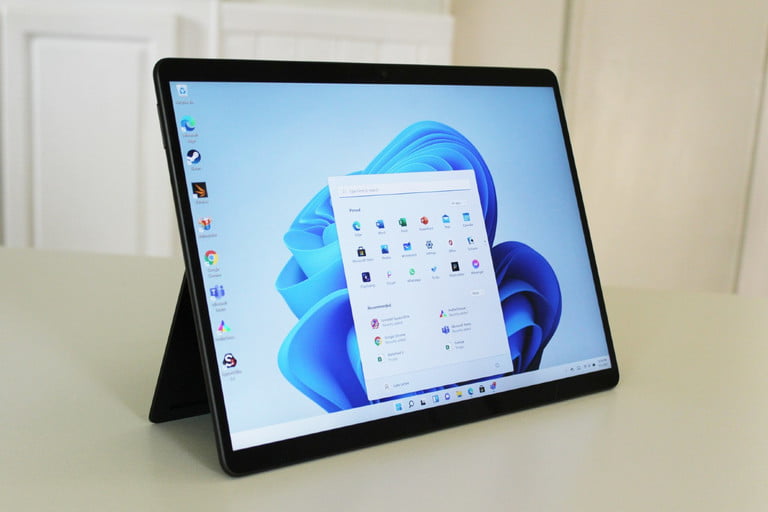
Windows 11 Tablet Experience Updated
Key Differences From Windows 10
- Full‑screen Start Menu – When you enable tablet mode, Windows 11 displays a large, touch‑friendly Start menu, unlike the traditional desktop Start that Windows 10 uses.
- iPad‑Like Touch Gestures – New gestures allow you to open the Start menu, dismiss windows, and swipe for app icons, all designed for fingertouch convenience, a feature absent in Windows 10.
- Optimized for Devices Like the Asus ROG Ally – The improved tablet mode helps gaming laptops that switch seamlessly between desktop and touch layouts.
Enhanced Pen Functionality
Windows 11 adds support for up to four app shortcuts that you can access directly from your pen. While Whiteboard remains for visual collaboration, you can now launch apps, set shortcuts, and even use pen gestures to manipulate the UI.
Voice Navigation Reinvented
Voice control in Windows 11 is more powerful than ever. You can use voice commands to launch apps, input text via the keyboard, move the mouse, and manage the operating system. This comprehensive voice interface lets you fully operate the OS without touching a screen.
In Summary
Windows 11 reimagines tablet and pen interaction, bringing touch gestures, pen shortcuts, and voice control to create a more fluid, touch‑centric experience—something Windows 10 could not deliver.
Performance
Windows 11’s Memory‑Management Power
Windows 11 prioritizes the apps you keep open by allocating more CPU resources to foreground windows. This strategy keeps background tasks lighter and gives active programs a noticeable boost in processing power.
Smooth Wake‑From‑Sleep
When your PC enters quiet mode, Windows 11 suspends select RAM contents. The result is a 25% faster return to full activity compared with Windows 10, making abrupt resumptions feel snappier.
Multi‑Architecture CPU Scheduling
Windows 11 has refined its scheduling logic to tap into the performance of multi‑architecture CPUs, such as Intel’s newest Arrow Lake line.
System Updates that Deliver Speed
Since its launch, Microsoft has introduced performance enhancements. In 2022, Windows 11 received an SSD‑speed upgrade that noticeably increased solid‑state drive throughput.
Real‑World Speed Gain is Moderate
While Windows 11 feels more responsive than Windows 10, the differences in everyday use are small. The various optimizations benefit weaker laptops, but you won’t sacrifice a huge amount of performance when moving from Windows 10 to Windows 11.
Collaboration and remote work

Microsoft Remote Work Essentials
Choosing Between Windows 11 and Windows 10
Both Windows 10 and Windows 11 support remote collaboration, but Windows 11 offers a richer set of tools designed for virtual meetings.
Key Collaboration Features on Windows 11
- Background Blur – keeps participants focused by removing distracting scenery.
- Eye Contact Adjustments – maintains natural conversation flow even when screens are misaligned.
- Automatic Framing – repositions the camera to keep all attendees in view without manual tweaking.
AI-Driven Enhancements Through Microsoft Teams
These advanced features are integrated with Microsoft Teams, but their effectiveness may vary depending on the computer’s hardware configuration.
Hardware Dependent Variations
- Camera resolution and GPU acceleration influence background blur quality.
- CPU core count and RAM determine how smoothly eye contact adjustments operate.
- USB camera and microphone connectivity affect automatic framing stability.
Android apps
Windows 11’s Android App Era is Coming to an End
When Windows 11 first surfaced, Android app support was one of its headline assets. Although you can still install Android apps on Windows 11, Microsoft’s portal for these apps—Amazon App Store—will shut down on March 5, 2025.
What That Means for Users
- Apps you’ve already installed will remain usable after the close.
- The storefront for new downloads and updates will no longer be reachable.
Android Apps Were a Big Deal on Windows 11
Adding an Android app ecosystem separated Windows 11 from Windows 10 in a significant way. That distinction will soon fade. If you were planning to upgrade to Windows 11 to enjoy your favorite Android applications, the upcoming end of the Amazon App Store will likely leave you disappointed.
![This is the JBL Bluetooth speaker that you want for parties — $100 off today\” />:root{–wp-admin-theme-color:#007cba;–wp-admin-theme-color–rgb:0,124,186;–wp-admin-theme-color-darker-10:#006ba1;–wp-admin-theme-color-darker-10–rgb:0,107,161;–wp-admin-theme-color-darker-20:#005a87;–wp-admin-theme-color-darker-20–rgb:0,90,135;–wp-admin-border-width-focus:2px;–wp-block-synced-color:#7a00df;–wp-block-synced-color–rgb:122,0,223;–wp-bound-block-color:var(–wp-block-synced-color)}@media (min-resolution:192dpi){:root{–wp-admin-border-width-focus:1.5px}}.wp-element-button{cursor:pointer}:root{–wp–preset–font-size–normal:16px;–wp–preset–font-size–huge:42px}:root .has-very-light-gray-background-color{background-color:#eee}:root .has-very-dark-gray-background-color{background-color:#313131}:root .has-very-light-gray-color{color:#eee}:root .has-very-dark-gray-color{color:#313131}:root .has-vivid-green-cyan-to-vivid-cyan-blue-gradient-background{background:linear-gradient(135deg,#00d084,#0693e3)}:root .has-purple-crush-gradient-background{background:linear-gradient(135deg,#34e2e4,#4721fb 50%,#ab1dfe)}:root .has-hazy-dawn-gradient-background{background:linear-gradient(135deg,#faaca8,#dad0ec)}:root .has-subdued-olive-gradient-background{background:linear-gradient(135deg,#fafae1,#67a671)}:root .has-atomic-cream-gradient-background{background:linear-gradient(135deg,#fdd79a,#004a59)}:root .has-nightshade-gradient-background{background:linear-gradient(135deg,#330968,#31cdcf)}:root .has-midnight-gradient-background{background:linear-gradient(135deg,#020381,#2874fc)}.has-regular-font-size{font-size:1em}.has-larger-font-size{font-size:2.625em}.has-normal-font-size{font-size:var(–wp–preset–font-size–normal)}.has-huge-font-size{font-size:var(–wp–preset–font-size–huge)}.has-text-align-center{text-align:center}.has-text-align-left{text-align:left}.has-text-align-right{text-align:right}#end-resizable-editor-section{display:none}.aligncenter{clear:both}.items-justified-left{justify-content:flex-start}.items-justified-center{justify-content:center}.items-justified-right{justify-content:flex-end}.items-justified-space-between{justify-content:space-between}.screen-reader-text{border:0;clip-path:inset(50%);height:1px;margin:-1px;overflow:hidden;padding:0;position:absolute;width:1px;word-wrap:normal!important}.screen-reader-text:focus{background-color:#ddd;clip-path:none;color:#444;display:block;font-size:1em;height:auto;left:5px;line-height:normal;padding:15px 23px 14px;text-decoration:none;top:5px;width:auto;z-index:100000}html :where(.has-border-color){border-style:solid}html :where([style*=border-top-color]){border-top-style:solid}html :where([style*=border-right-color]){border-right-style:solid}html :where([style*=border-bottom-color]){border-bottom-style:solid}html :where([style*=border-left-color]){border-left-style:solid}html :where([style*=border-width]){border-style:solid}html :where([style*=border-top-width]){border-top-style:solid}html :where([style*=border-right-width]){border-right-style:solid}html :where([style*=border-bottom-width]){border-bottom-style:solid}html :where([style*=border-left-width]){border-left-style:solid}html :where(img[class*=wp-image-]){height:auto;max-width:100%}:where(figure){margin:0 0 1em}html :where(.is-position-sticky){–wp-admin–admin-bar–position-offset:var(–wp-admin–admin-bar–height,0px)}@media screen and (max-width:600px){html :where(.is-position-sticky){–wp-admin–admin-bar–position-offset:0px}}/*! This file is auto-generated */.wp-block-button__link{color:#fff;background-color:#32373c;border-radius:9999px;box-shadow:none;text-decoration:none;padding:calc(.667em + 2px) calc(1.333em + 2px);font-size:1.125em}.wp-block-file__button{background:#32373c;color:#fff;text-decoration:none}](https://www.digitaltrends.com/wp-content/uploads/2025/08/JBL-PartyBox-On-The-Go-Essential-Bluetooth-speaker.jpg "This is the JBL Bluetooth speaker that you want for parties — $100 off today\” />:root{–wp-admin-theme-color:#007cba;–wp-admin-theme-color–rgb:0,124,186;–wp-admin-theme-color-darker-10:#006ba1;–wp-admin-theme-color-darker-10–rgb:0,107,161;–wp-admin-theme-color-darker-20:#005a87;–wp-admin-theme-color-darker-20–rgb:0,90,135;–wp-admin-border-width-focus:2px;–wp-block-synced-color:#7a00df;–wp-block-synced-color–rgb:122,0,223;–wp-bound-block-color:var(–wp-block-synced-color)}@media (min-resolution:192dpi){:root{–wp-admin-border-width-focus:1.5px}}.wp-element-button{cursor:pointer}:root{–wp–preset–font-size–normal:16px;–wp–preset–font-size–huge:42px}:root .has-very-light-gray-background-color{background-color:#eee}:root .has-very-dark-gray-background-color{background-color:#313131}:root .has-very-light-gray-color{color:#eee}:root .has-very-dark-gray-color{color:#313131}:root .has-vivid-green-cyan-to-vivid-cyan-blue-gradient-background{background:linear-gradient(135deg,#00d084,#0693e3)}:root .has-purple-crush-gradient-background{background:linear-gradient(135deg,#34e2e4,#4721fb 50%,#ab1dfe)}:root .has-hazy-dawn-gradient-background{background:linear-gradient(135deg,#faaca8,#dad0ec)}:root .has-subdued-olive-gradient-background{background:linear-gradient(135deg,#fafae1,#67a671)}:root .has-atomic-cream-gradient-background{background:linear-gradient(135deg,#fdd79a,#004a59)}:root .has-nightshade-gradient-background{background:linear-gradient(135deg,#330968,#31cdcf)}:root .has-midnight-gradient-background{background:linear-gradient(135deg,#020381,#2874fc)}.has-regular-font-size{font-size:1em}.has-larger-font-size{font-size:2.625em}.has-normal-font-size{font-size:var(–wp–preset–font-size–normal)}.has-huge-font-size{font-size:var(–wp–preset–font-size–huge)}.has-text-align-center{text-align:center}.has-text-align-left{text-align:left}.has-text-align-right{text-align:right}#end-resizable-editor-section{display:none}.aligncenter{clear:both}.items-justified-left{justify-content:flex-start}.items-justified-center{justify-content:center}.items-justified-right{justify-content:flex-end}.items-justified-space-between{justify-content:space-between}.screen-reader-text{border:0;clip-path:inset(50%);height:1px;margin:-1px;overflow:hidden;padding:0;position:absolute;width:1px;word-wrap:normal!important}.screen-reader-text:focus{background-color:#ddd;clip-path:none;color:#444;display:block;font-size:1em;height:auto;left:5px;line-height:normal;padding:15px 23px 14px;text-decoration:none;top:5px;width:auto;z-index:100000}html :where(.has-border-color){border-style:solid}html :where([style*=border-top-color]){border-top-style:solid}html :where([style*=border-right-color]){border-right-style:solid}html :where([style*=border-bottom-color]){border-bottom-style:solid}html :where([style*=border-left-color]){border-left-style:solid}html :where([style*=border-width]){border-style:solid}html :where([style*=border-top-width]){border-top-style:solid}html :where([style*=border-right-width]){border-right-style:solid}html :where([style*=border-bottom-width]){border-bottom-style:solid}html :where([style*=border-left-width]){border-left-style:solid}html :where(img[class*=wp-image-]){height:auto;max-width:100%}:where(figure){margin:0 0 1em}html :where(.is-position-sticky){–wp-admin–admin-bar–position-offset:var(–wp-admin–admin-bar–height,0px)}@media screen and (max-width:600px){html :where(.is-position-sticky){–wp-admin–admin-bar–position-offset:0px}}/*! This file is auto-generated */.wp-block-button__link{color:#fff;background-color:#32373c;border-radius:9999px;box-shadow:none;text-decoration:none;padding:calc(.667em + 2px) calc(1.333em + 2px);font-size:1.125em}.wp-block-file__button{background:#32373c;color:#fff;text-decoration:none}")
![5 days in, the Pixel 10 Pro doesn’t excite me, but it’s fantastic\” />:root{–wp-admin-theme-color:#007cba;–wp-admin-theme-color–rgb:0,124,186;–wp-admin-theme-color-darker-10:#006ba1;–wp-admin-theme-color-darker-10–rgb:0,107,161;–wp-admin-theme-color-darker-20:#005a87;–wp-admin-theme-color-darker-20–rgb:0,90,135;–wp-admin-border-width-focus:2px;–wp-block-synced-color:#7a00df;–wp-block-synced-color–rgb:122,0,223;–wp-bound-block-color:var(–wp-block-synced-color)}@media (min-resolution:192dpi){:root{–wp-admin-border-width-focus:1.5px}}.wp-element-button{cursor:pointer}:root{–wp–preset–font-size–normal:16px;–wp–preset–font-size–huge:42px}:root .has-very-light-gray-background-color{background-color:#eee}:root .has-very-dark-gray-background-color{background-color:#313131}:root .has-very-light-gray-color{color:#eee}:root .has-very-dark-gray-color{color:#313131}:root .has-vivid-green-cyan-to-vivid-cyan-blue-gradient-background{background:linear-gradient(135deg,#00d084,#0693e3)}:root .has-purple-crush-gradient-background{background:linear-gradient(135deg,#34e2e4,#4721fb 50%,#ab1dfe)}:root .has-hazy-dawn-gradient-background{background:linear-gradient(135deg,#faaca8,#dad0ec)}:root .has-subdued-olive-gradient-background{background:linear-gradient(135deg,#fafae1,#67a671)}:root .has-atomic-cream-gradient-background{background:linear-gradient(135deg,#fdd79a,#004a59)}:root .has-nightshade-gradient-background{background:linear-gradient(135deg,#330968,#31cdcf)}:root .has-midnight-gradient-background{background:linear-gradient(135deg,#020381,#2874fc)}.has-regular-font-size{font-size:1em}.has-larger-font-size{font-size:2.625em}.has-normal-font-size{font-size:var(–wp–preset–font-size–normal)}.has-huge-font-size{font-size:var(–wp–preset–font-size–huge)}.has-text-align-center{text-align:center}.has-text-align-left{text-align:left}.has-text-align-right{text-align:right}#end-resizable-editor-section{display:none}.aligncenter{clear:both}.items-justified-left{justify-content:flex-start}.items-justified-center{justify-content:center}.items-justified-right{justify-content:flex-end}.items-justified-space-between{justify-content:space-between}.screen-reader-text{border:0;clip-path:inset(50%);height:1px;margin:-1px;overflow:hidden;padding:0;position:absolute;width:1px;word-wrap:normal!important}.screen-reader-text:focus{background-color:#ddd;clip-path:none;color:#444;display:block;font-size:1em;height:auto;left:5px;line-height:normal;padding:15px 23px 14px;text-decoration:none;top:5px;width:auto;z-index:100000}html :where(.has-border-color){border-style:solid}html :where([style*=border-top-color]){border-top-style:solid}html :where([style*=border-right-color]){border-right-style:solid}html :where([style*=border-bottom-color]){border-bottom-style:solid}html :where([style*=border-left-color]){border-left-style:solid}html :where([style*=border-width]){border-style:solid}html :where([style*=border-top-width]){border-top-style:solid}html :where([style*=border-right-width]){border-right-style:solid}html :where([style*=border-bottom-width]){border-bottom-style:solid}html :where([style*=border-left-width]){border-left-style:solid}html :where(img[class*=wp-image-]){height:auto;max-width:100%}:where(figure){margin:0 0 1em}html :where(.is-position-sticky){–wp-admin–admin-bar–position-offset:var(–wp-admin–admin-bar–height,0px)}@media screen and (max-width:600px){html :where(.is-position-sticky){–wp-admin–admin-bar–position-offset:0px}}/*! This file is auto-generated */.wp-block-button__link{color:#fff;background-color:#32373c;border-radius:9999px;box-shadow:none;text-decoration:none;padding:calc(.667em + 2px) calc(1.333em + 2px);font-size:1.125em}.wp-block-file__button{background:#32373c;color:#fff;text-decoration:none}](https://www.digitaltrends.com/wp-content/uploads/2025/08/Google-Pixel-10-Pro-Porcelain-Ongoing-Review-18.jpg "5 days in, the Pixel 10 Pro doesn’t excite me, but it’s fantastic\” />:root{–wp-admin-theme-color:#007cba;–wp-admin-theme-color–rgb:0,124,186;–wp-admin-theme-color-darker-10:#006ba1;–wp-admin-theme-color-darker-10–rgb:0,107,161;–wp-admin-theme-color-darker-20:#005a87;–wp-admin-theme-color-darker-20–rgb:0,90,135;–wp-admin-border-width-focus:2px;–wp-block-synced-color:#7a00df;–wp-block-synced-color–rgb:122,0,223;–wp-bound-block-color:var(–wp-block-synced-color)}@media (min-resolution:192dpi){:root{–wp-admin-border-width-focus:1.5px}}.wp-element-button{cursor:pointer}:root{–wp–preset–font-size–normal:16px;–wp–preset–font-size–huge:42px}:root .has-very-light-gray-background-color{background-color:#eee}:root .has-very-dark-gray-background-color{background-color:#313131}:root .has-very-light-gray-color{color:#eee}:root .has-very-dark-gray-color{color:#313131}:root .has-vivid-green-cyan-to-vivid-cyan-blue-gradient-background{background:linear-gradient(135deg,#00d084,#0693e3)}:root .has-purple-crush-gradient-background{background:linear-gradient(135deg,#34e2e4,#4721fb 50%,#ab1dfe)}:root .has-hazy-dawn-gradient-background{background:linear-gradient(135deg,#faaca8,#dad0ec)}:root .has-subdued-olive-gradient-background{background:linear-gradient(135deg,#fafae1,#67a671)}:root .has-atomic-cream-gradient-background{background:linear-gradient(135deg,#fdd79a,#004a59)}:root .has-nightshade-gradient-background{background:linear-gradient(135deg,#330968,#31cdcf)}:root .has-midnight-gradient-background{background:linear-gradient(135deg,#020381,#2874fc)}.has-regular-font-size{font-size:1em}.has-larger-font-size{font-size:2.625em}.has-normal-font-size{font-size:var(–wp–preset–font-size–normal)}.has-huge-font-size{font-size:var(–wp–preset–font-size–huge)}.has-text-align-center{text-align:center}.has-text-align-left{text-align:left}.has-text-align-right{text-align:right}#end-resizable-editor-section{display:none}.aligncenter{clear:both}.items-justified-left{justify-content:flex-start}.items-justified-center{justify-content:center}.items-justified-right{justify-content:flex-end}.items-justified-space-between{justify-content:space-between}.screen-reader-text{border:0;clip-path:inset(50%);height:1px;margin:-1px;overflow:hidden;padding:0;position:absolute;width:1px;word-wrap:normal!important}.screen-reader-text:focus{background-color:#ddd;clip-path:none;color:#444;display:block;font-size:1em;height:auto;left:5px;line-height:normal;padding:15px 23px 14px;text-decoration:none;top:5px;width:auto;z-index:100000}html :where(.has-border-color){border-style:solid}html :where([style*=border-top-color]){border-top-style:solid}html :where([style*=border-right-color]){border-right-style:solid}html :where([style*=border-bottom-color]){border-bottom-style:solid}html :where([style*=border-left-color]){border-left-style:solid}html :where([style*=border-width]){border-style:solid}html :where([style*=border-top-width]){border-top-style:solid}html :where([style*=border-right-width]){border-right-style:solid}html :where([style*=border-bottom-width]){border-bottom-style:solid}html :where([style*=border-left-width]){border-left-style:solid}html :where(img[class*=wp-image-]){height:auto;max-width:100%}:where(figure){margin:0 0 1em}html :where(.is-position-sticky){–wp-admin–admin-bar–position-offset:var(–wp-admin–admin-bar–height,0px)}@media screen and (max-width:600px){html :where(.is-position-sticky){–wp-admin–admin-bar–position-offset:0px}}/*! This file is auto-generated */.wp-block-button__link{color:#fff;background-color:#32373c;border-radius:9999px;box-shadow:none;text-decoration:none;padding:calc(.667em + 2px) calc(1.333em + 2px);font-size:1.125em}.wp-block-file__button{background:#32373c;color:#fff;text-decoration:none}")
